> For the complete documentation index, see [llms.txt](https://docs.parallels.cn/llms.txt). Markdown versions of documentation pages are available by appending `.md` to page URLs; this page is available as [Markdown](https://docs.parallels.cn/pdfm-26-ug-zh_cn/parallels-desktop-for-mac-26-yong-hu-zhi-nan/zai-mac-shang-shi-yong-windows/shu-biao-chu-kong-ban-he-jian-pan/shu-biao-he-jian-pan-she-zhi.md).
# 鼠标和键盘设置
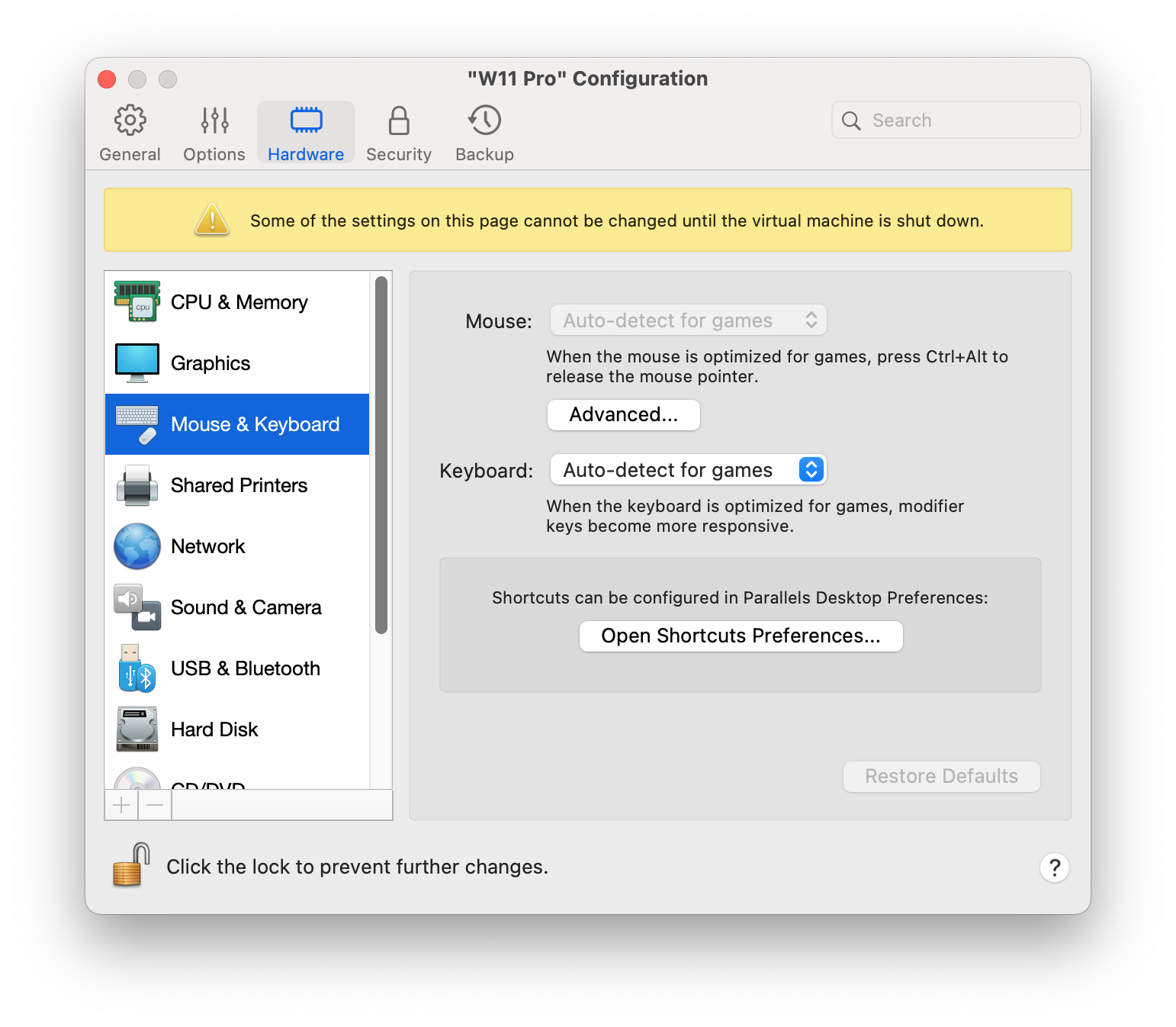
使用**鼠标和键盘**设置,您可以:
* 设置鼠标指针活动是否针对游戏优化。
* 设置在[窗口模式](/pdfm-26-ug-zh_cn/parallels-desktop-for-mac-26-yong-hu-zhi-nan/zai-mac-shang-shi-yong-windows/she-ding-windows-ru-he-yu-macos-xie-tong-gong-zuo/she-ding-windows-chu-xian-zai-yi-ge-dan-du-de-chuang-kou.md)中鼠标指针是否停留在窗口边缘。
* 设置修饰键是否针对游戏优化。
要访问**鼠标和键盘**设置,请执行以下操作:
1. 请视需要选择执行以下操作:
* 单击菜单栏中的 Parallels Desktop 图标,然后选择**配置**。
* 如果在屏幕顶部可以看见 Parallels Desktop 菜单栏,请选择**操作** > **配置**。
2. 单击“硬件”,并选择侧边栏中的**鼠标和键盘**。
### **鼠标**
如果您在虚拟机中玩游戏,则可以使用“鼠标”菜单设置鼠标的使用方式:
* **自动检测游戏**。推荐该选项为默认设置。如果您运行来宾操作系统应用程序,则鼠标可在来宾操作系统和 macOS 之间自由移动。但是,当您开始游戏时,SmartMouse 会自动捕捉虚拟机中的鼠标输入,这样您便不会不小心将鼠标移动到 macOS,也不会当您退出游戏时自动释放鼠标。
* **针对游戏优化**。当您玩游戏时如果鼠标不小心移动到 macOS,请选择该选项,以设置鼠标仅在虚拟机中运行。
* **不要针对游戏优化**。在很少的情况下,SmartMouse 可能会检测把一个应用程序视作游戏,而导致鼠标操作该应用程序异常。如果出现此问题,请选择“不要针对游戏优化”。
### **修饰键优化**
如果您在操作游戏中常使用修饰键 Option (Alt)、Ctrl 和 Shift,请从**键盘**菜单选择**针对游戏优化**。如果您选择了此选项,来自这些按键的信号将会被更快地处理。
{% hint style="info" %}
\*\*注意:\*\*不玩游戏时,我们不建议针对游戏优化键盘。
{% endhint %}
### **鼠标指针粘附在边缘**
当在[窗口视图模式](/pdfm-26-ug-zh_cn/parallels-desktop-for-mac-26-yong-hu-zhi-nan/zai-mac-shang-shi-yong-windows/she-ding-windows-ru-he-yu-macos-xie-tong-gong-zuo/she-ding-windows-chu-xian-zai-yi-ge-dan-du-de-chuang-kou.md)中操作虚拟机时,您可能经常会需要移动鼠标指针到虚拟机窗口的边缘来显示不同的虚拟机操作系统项目:例如,在 Windows 8 中显示 开始 菜单,显示在 Windows XP 中隐藏的任务栏,或当任何虚拟机 macOS 应用程序正在全屏中运行时显示 macOS 菜单栏。
**鼠标指针粘附在窗口边缘**选项会让鼠标指针在虚拟机窗口边缘停留一会,这样您就不会不小心将鼠标移出虚拟机窗口了。要从边缘上移开,只需快速移动鼠标即可。
---
# Agent Instructions
This documentation is published with GitBook. GitBook is the documentation platform designed so that both humans and AI agents can read, navigate, and reason over technical content effectively. Learn more at gitbook.com.
## Querying This Documentation
If you need additional information that is not directly available in this page, you can query the documentation by asking a question.
Perform an HTTP GET request on the following URL with the `ask` and `goal` query parameters:
```
GET https://docs.parallels.cn/pdfm-26-ug-zh_cn/parallels-desktop-for-mac-26-yong-hu-zhi-nan/zai-mac-shang-shi-yong-windows/shu-biao-chu-kong-ban-he-jian-pan/shu-biao-he-jian-pan-she-zhi.md?ask=&goal=
```
`ask` is the immediate question: it should be specific, self-contained, and written in natural language.
`goal` is what the user is ultimately trying to achieve, the reason they need the answer. Sharing it helps GitBook give you a better, more relevant answer. A goal is most helpful when it describes the outcome the user wants rather than restating the question. For example, with `ask=how do I create an API token`, a goal like `automate deployments from our CI pipeline` lets GitBook tailor the answer to that use case.
The response will contain a direct answer to the question and relevant excerpts and sources from the documentation.
Use this mechanism when the answer is not explicitly present in the current page, you need clarification or additional context, or you want to retrieve related documentation sections.