> For the complete documentation index, see [llms.txt](https://docs.parallels.cn/llms.txt). Markdown versions of documentation pages are available by appending `.md` to page URLs; this page is available as [Markdown](https://docs.parallels.cn/pdfm-26-ug-zh_cn/parallels-desktop-for-mac-26-yong-hu-zhi-nan/zai-mac-shang-shi-yong-windows/she-ding-windows-ru-he-yu-macos-xie-tong-gong-zuo/zai-macos-yu-windows-zhi-jian-gong-xiang-xiang-mu/yu-macos-gong-xiang-windows-onedrive-wen-jian-jia.md).
# 与 macOS 共享 Windows OneDrive 文件夹
如果您正在使用 Microsoft OneDrive 将文件存储在云端,可以轻松地在 macOS 上共享您的 OneDrive 文件夹。这样,您就可以在 macOS 上上传或下载 OneDrive 文件,而无需在硬盘上复制任何文件。
{% hint style="info" %}
**注释:**\
1\. 若要在 macOS 上共享 OneDrive 文件夹,必须在 Windows 上安装 [OneDrive 桌面应用](https://www.microsoft.com/zh-cn/microsoft-365/onedrive/online-cloud-storage)。如果您使用的是预装的 OneDrive 应用,则无法共享 OneDrive 文件夹,因为该应用不会创建任何本地文件夹,而是直接与云存储进行交互。\
2\. 仅当在 Windows 中[安装了 Parallels Tools](https://docs.parallels.cn/pdfm-26-ug-zh_cn/parallels-desktop-for-mac-26-yong-hu-zhi-nan/gao-ji-zhu-ti/an-zhuang-huo-geng-xin-parallels-tools/parallels-tools-for-windows.md) 时,才可使用此功能。\
3\. Parallels Desktop 的 App Store 版本不支持此功能。如需了解标准版与 App Store 版本之间的区别,请点击此[链接](https://kb.parallels.com/123796)。
{% endhint %}
若要将 Windows OneDrive 文件夹与 macOS 共享,请按照以下步骤操作:
1. 如果 Windows 中尚未设置 OneDrive,请进行设置。如需了解更多信息,请访问[此 Microsoft 页面](https://www.microsoft.com/zh-cn/microsoft-365/onedrive/online-cloud-storage)。
2. 请执行以下操作之一:
* 点击菜单栏中的 Parallels Desktop 图标,然后选择**配置。**
* 如果屏幕顶部显示了 Parallels Desktop 菜单栏,请选择**操作**>**配置**。
3. 单击**选项**,然后选择**共享**>**共享 Windows**。
4. **在 Mac 上访问 Windows 文件夹**,并在 **Mac 上共享 OneDrive**。
5. 在 macOS “访达”中,选择**访达** > **偏好设置**,然后选择**已连接的服务器**。
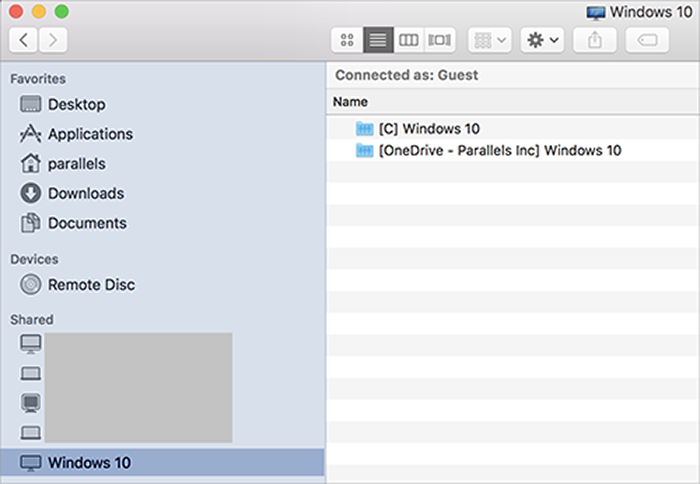
6. 打开“Finder”,然后在“**共享**”部分中点击您的虚拟机。该虚拟机必须处于运行状态。
7. 双击 OneDrive 磁盘。该磁盘将被挂载,并显示在桌面上。
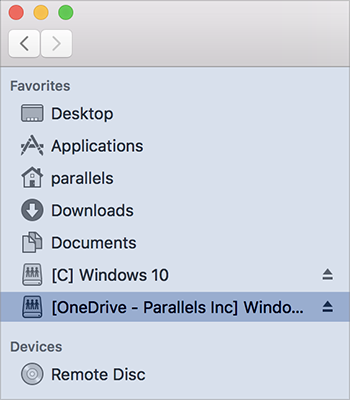
8. 将桌面上的 OneDrive 磁盘拖放到 Finder 中的 **收藏夹** 部分。
以下是在 macOS Finder 中让 OneDrive 文件永久可访问的方法。您可以利用此方法在 macOS 上下载或上传文件到 OneDrive。
---
# Agent Instructions
This documentation is published with GitBook. GitBook is the documentation platform designed so that both humans and AI agents can read, navigate, and reason over technical content effectively. Learn more at gitbook.com.
## Querying This Documentation
If you need additional information that is not directly available in this page, you can query the documentation by asking a question.
Perform an HTTP GET request on the following URL with the `ask` and `goal` query parameters:
```
GET https://docs.parallels.cn/pdfm-26-ug-zh_cn/parallels-desktop-for-mac-26-yong-hu-zhi-nan/zai-mac-shang-shi-yong-windows/she-ding-windows-ru-he-yu-macos-xie-tong-gong-zuo/zai-macos-yu-windows-zhi-jian-gong-xiang-xiang-mu/yu-macos-gong-xiang-windows-onedrive-wen-jian-jia.md?ask=&goal=
```
`ask` is the immediate question: it should be specific, self-contained, and written in natural language.
`goal` is what the user is ultimately trying to achieve, the reason they need the answer. Sharing it helps GitBook give you a better, more relevant answer. A goal is most helpful when it describes the outcome the user wants rather than restating the question. For example, with `ask=how do I create an API token`, a goal like `automate deployments from our CI pipeline` lets GitBook tailor the answer to that use case.
The response will contain a direct answer to the question and relevant excerpts and sources from the documentation.
Use this mechanism when the answer is not explicitly present in the current page, you need clarification or additional context, or you want to retrieve related documentation sections.