# 启动和关机设置

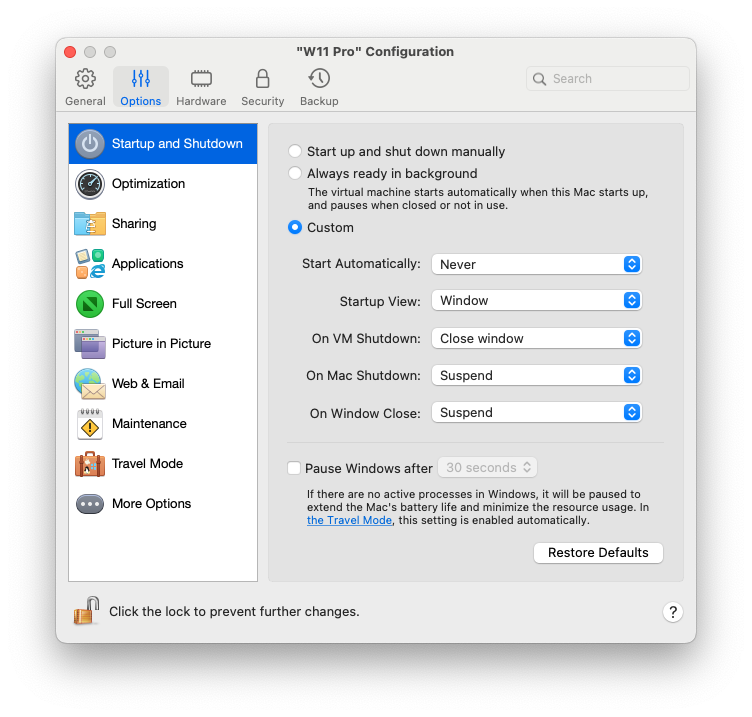
在**启动和关闭**窗格中，您可以配置虚拟机的启动或关闭方式。

要打开这些设置，请选择**操作** > **配置**> **选项**，然后单击**启动和关闭**。

<figure><img src="https://3412380772-files.gitbook.io/~/files/v0/b/gitbook-x-prod.appspot.com/o/spaces%2F55o4LvvtLQhggE49oKZe%2Fuploads%2Fgit-blob-a5d5e76bae3385a5134b5fcb41e25e51eba1119a%2FScreenshot%202024-01-19%20at%2016.30.00.png?alt=media" alt="" width="563"><figcaption></figcaption></figure>

<table><thead><tr><th width="282">选项</th><th>描述</th></tr></thead><tbody><tr><td><strong>手动启动和关闭</strong></td><td>如果您想要手动启动和关闭虚拟机，请选择该选项。</td></tr><tr><td><strong>始终在后台准备就绪</strong></td><td>要将虚拟机设置为在 Mac 启动时自动启动，请选中此选项。</td></tr><tr><td><strong>自定义</strong></td><td><p>如果您不仅要指定虚拟机启动或关闭的方式，还要指定关闭虚拟机窗口时的视图模式和执行的操作，请选择<strong>自定义</strong>并指定以下内容：</p><ul><li><p><strong>自动启动</strong>。使用此菜单可设置是否自动启动虚拟机：</p><ul><li><strong>从不</strong>：虚拟机从不自动启动。</li><li><strong>当窗口打开时</strong>：虚拟机在您从<strong>控制中心</strong>打开它时自动启动。</li><li><strong>当 Parallels Desktop 启动时</strong>：虚拟机在 Parallels Desktop 启动时自动启动。</li><li><strong>当 Mac 启动时：</strong>虚拟机在 Mac 启动时自动启动。如果选中此选项，还可以将虚拟机配置为延迟启动。</li><li><strong>在用户登录时</strong>：Mac 启动且 macOS 用户登录 macOS 后，Windows 自动启动。</li></ul></li><li><strong>启动视图</strong>。使用此菜单来选择在您启动虚拟机或来宾操作系统应用程序时虚拟机以何种模式启动。</li><li><p><strong>虚拟机关闭时</strong>。使用此菜单设定在关闭虚拟机后的行为：</p><ul><li><strong>保持窗口打开</strong>：如果虚拟机设置为在单独窗口中显示，则当您停止或关闭虚拟机时，此窗口会保持打开。</li><li><strong>关闭窗口</strong>：如果虚拟机设置为在单独窗口中显示，则当您停止或关闭虚拟机时，此窗口会关闭。</li><li><strong>退出 Parallels Desktop</strong>：在虚拟机停止或关闭时退出 Parallels Desktop。</li></ul></li><li><strong>在 Mac 关闭时</strong>。此菜单可用于指定在 Mac 关闭时发生的情况（仅适用于 Parallels Desktop for Mac Pro Edition 和 Parallels Desktop for Mac Business Edition）。</li><li><strong>窗口关闭时</strong>。此菜单可用于设置在 Parallels Desktop 窗口关闭时发生的情况。此设置仅影响虚拟机设置为出现在单独窗口中时的行为。</li></ul></td></tr><tr><td><strong>达到以下时间段后暂停 Windows</strong></td><td>如果 Windows 中没有活动进程，它仍将消耗您 Mac 的 CPU 资源。选择此选项并指定一段无操作时间，达到该时间段后将自动暂停 Windows。这样，Windows 服务就会使用更少的 CPU 资源，可让您节省电池电量并为环境提供帮助。<br><br><a data-footnote-ref href="#user-content-fn-1"><strong>注意</strong>：从 20.4.0 版开始，新创建的虚拟机默认禁用该选项。</a></td></tr></tbody></table>

[^1]:


---

# Agent Instructions: Querying This Documentation

If you need additional information that is not directly available in this page, you can query the documentation dynamically by asking a question.

Perform an HTTP GET request on the current page URL with the `ask` query parameter:

```
GET https://docs.parallels.cn/pdfm-20-ug-zh_cn/parallels-desktop-for-mac-20-yong-hu-zhi-nan/parallels-desktop-pian-hao-she-zhi-he-xu-ni-ji-she-zhi/xu-ni-ji-she-zhi/xuan-xiang/qi-dong-he-guan-ji-she-zhi.md?ask=<question>
```

The question should be specific, self-contained, and written in natural language.
The response will contain a direct answer to the question and relevant excerpts and sources from the documentation.

Use this mechanism when the answer is not explicitly present in the current page, you need clarification or additional context, or you want to retrieve related documentation sections.
