# 全屏 (Full Screen) 设置

在**全屏**窗格中，您可以配置与此视图模式相关的设置。

要打开这些设置，请选择**操作** > **配置**> **选项**，然后单击**全屏**。

<figure><img src="https://content.gitbook.com/content/qKbefv1M4uGoIR0MxNHW/blobs/2if9r5exTtGQBIxS63sI/Screenshot%202024-01-19%20at%2017.09.44.png" alt="" width="563"><figcaption></figcaption></figure>

| 选项                   | 说明                                                                                                                                                                                                                                                                                                                                                                                                                                                                                                                                                                                                                                                                                                                                                                |
| -------------------- | ----------------------------------------------------------------------------------------------------------------------------------------------------------------------------------------------------------------------------------------------------------------------------------------------------------------------------------------------------------------------------------------------------------------------------------------------------------------------------------------------------------------------------------------------------------------------------------------------------------------------------------------------------------------------------------------------------------------------------------------------------------------- |
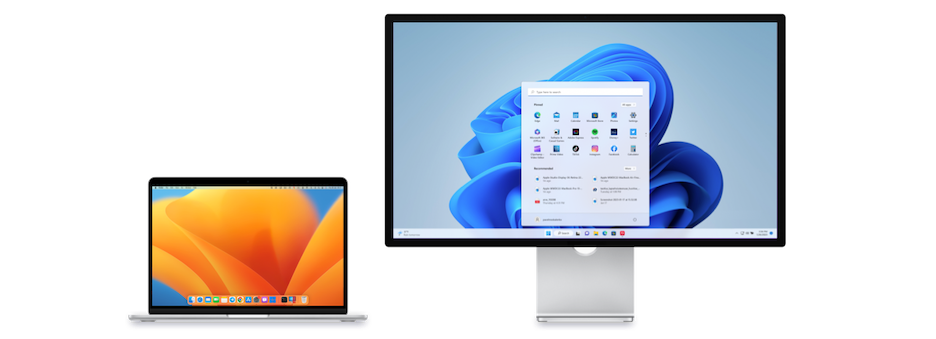
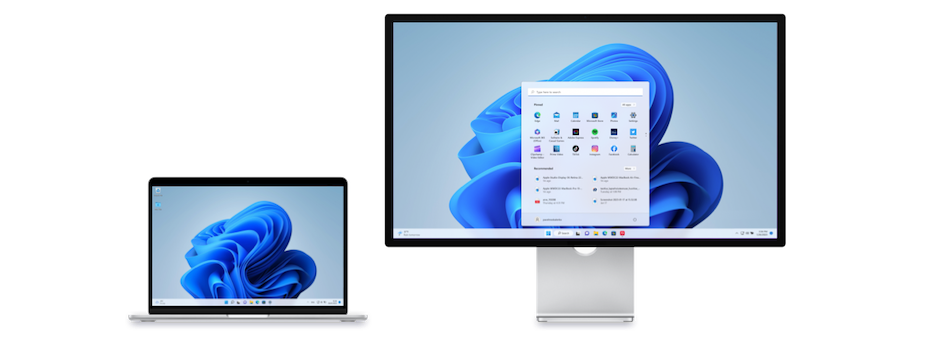
| **将全屏模式应用于所有显示器**    | <p>如果您有第二个连接到 Mac 的显示器，在切换到全屏 (Full Screen) 模式时默认仅在一个显示器上显示 Windows。<br></p><p><a href="https://download.parallels.com/desktop/v19/docs/en_US/Parallels%20Desktop%20User&#x27;s%20Guide/43125.htm"><img src="https://download.parallels.com/desktop/v19/docs/en_US/Parallels%20Desktop%20User&#x27;s%20Guide/49455.png" alt="LaptopDesktop_4"></a>您可选择显示 Windows 的显示器，只需拖拽其窗口到该显示器，然后单击绿色的“全屏 (Full Screen)”模式图标。<br></p><p>要将 Windows 扩展到所有显示器上，可选择<strong>将全屏模式应用于所有显示器</strong>。</p><p><a href="https://download.parallels.com/desktop/v19/docs/en_US/Parallels%20Desktop%20User&#x27;s%20Guide/43125.htm"><img src="https://download.parallels.com/desktop/v19/docs/en_US/Parallels%20Desktop%20User&#x27;s%20Guide/49456.png" alt="LaptopDesktop_2"></a></p> |
| **同时显示和隐藏所有显示器上的空格** | <p>如果您选择在切换到全屏 (Full Screen) 模式时在所有显示器上显示虚拟机，还可以选择<strong>在所有显示器上同时显示和隐藏空间</strong>。<br></p><p>选定此选项后，单击其中一个显示器上的虚拟机时，它将显示在所有其他显示器上。并且在将焦点切换到其中一个显示器上的其他内容时，虚拟机空间会在所有其他监控器上隐藏。</p>                                                                                                                                                                                                                                                                                                                                                                                                                                                                                                                                                                                |
| **优化游戏的全屏模式**        | 如果您是在全屏 (Full Screen) 视图模式下使用虚拟机玩视频游戏，请选择**优化游戏的全屏模式**。选择该选项后，将不会显示 macOS Dock,、菜单栏和通知。要释放鼠标输入，请按 Ctrl + Alt。                                                                                                                                                                                                                                                                                                                                                                                                                                                                                                                                                                                                                                                     |
| **使用 Windows 伽马设置**  | 如果您正使用虚拟机玩视频游戏，虚拟机可能需要暂时修改您 Mac 的显示器伽马设置以正常显示不同的视觉效果。若要允许虚拟机修改伽马设置，请选择**使用 Windows 伽马设置**。此选项只在全屏 (Full Screen) 视图模式下工作。                                                                                                                                                                                                                                                                                                                                                                                                                                                                                                                                                                                                                                          |
| **缩放至适合屏幕大小**        | <p>使用此菜单配置在全屏 (Full Screen) 模式下工作时虚拟机的显示方式：</p><ul><li><strong>关闭。</strong>如果 Parallels Tools 已安装，虚拟机分辨率会匹配 Mac 的分辨率。如果 Parallels Tools 还未安装，虚拟机分辨率将保持不变。如果虚拟机分辨率低于 Mac 的分辨率，虚拟机会在黑色的背景上显示。如果高于 Mac 的分辨率，虚拟机会有滚动条。</li><li><strong>自动。</strong>如果 Parallels Tools 已安装，虚拟机分辨率会匹配 Mac 的分辨率。如果 Parallels Tools 还未安装，虚拟机分辨率将保持不变。如果虚拟机分辨率低于 Mac 的分辨率，虚拟机会在黑色的背景上显示。如果分辨率更高，虚拟机会占据整个屏幕而不会出现滚动条。</li><li><strong>保持比例</strong>：不管 Parallels Tools 是否已安装，虚拟机分辨率将保持不变。如果虚拟机分辨率低于 Mac 的分辨率，虚拟机会在黑色的背景上显示。如果分辨率更高，虚拟机会占据整个屏幕而不会出现滚动条。</li><li><strong>拉伸</strong>：不管 Parallels Tools 是否已安装，虚拟机分辨率将保持不变，但是虚拟机拉伸占据整个屏幕。</li></ul>                                                                                                                                             |


---

# Agent Instructions: Querying This Documentation

If you need additional information that is not directly available in this page, you can query the documentation dynamically by asking a question.

Perform an HTTP GET request on the current page URL with the `ask` query parameter:

```
GET https://docs.parallels.cn/pdfm-19-ug-zh_cn/parallels-desktop-for-mac-19-users-guide/parallels-desktop-pian-hao-she-zhi-he-xu-ni-ji-she-zhi/xu-ni-ji-she-zhi/xuan-xiang/quan-ping-full-screen-she-zhi.md?ask=<question>
```

The question should be specific, self-contained, and written in natural language.
The response will contain a direct answer to the question and relevant excerpts and sources from the documentation.

Use this mechanism when the answer is not explicitly present in the current page, you need clarification or additional context, or you want to retrieve related documentation sections.